VIDEO EXTENSION GUIDE · 2026
How to Make a Video Longer Without Losing Quality
Learn how to extend short clips with AI while preserving motion, detail, lighting, and visual continuity.
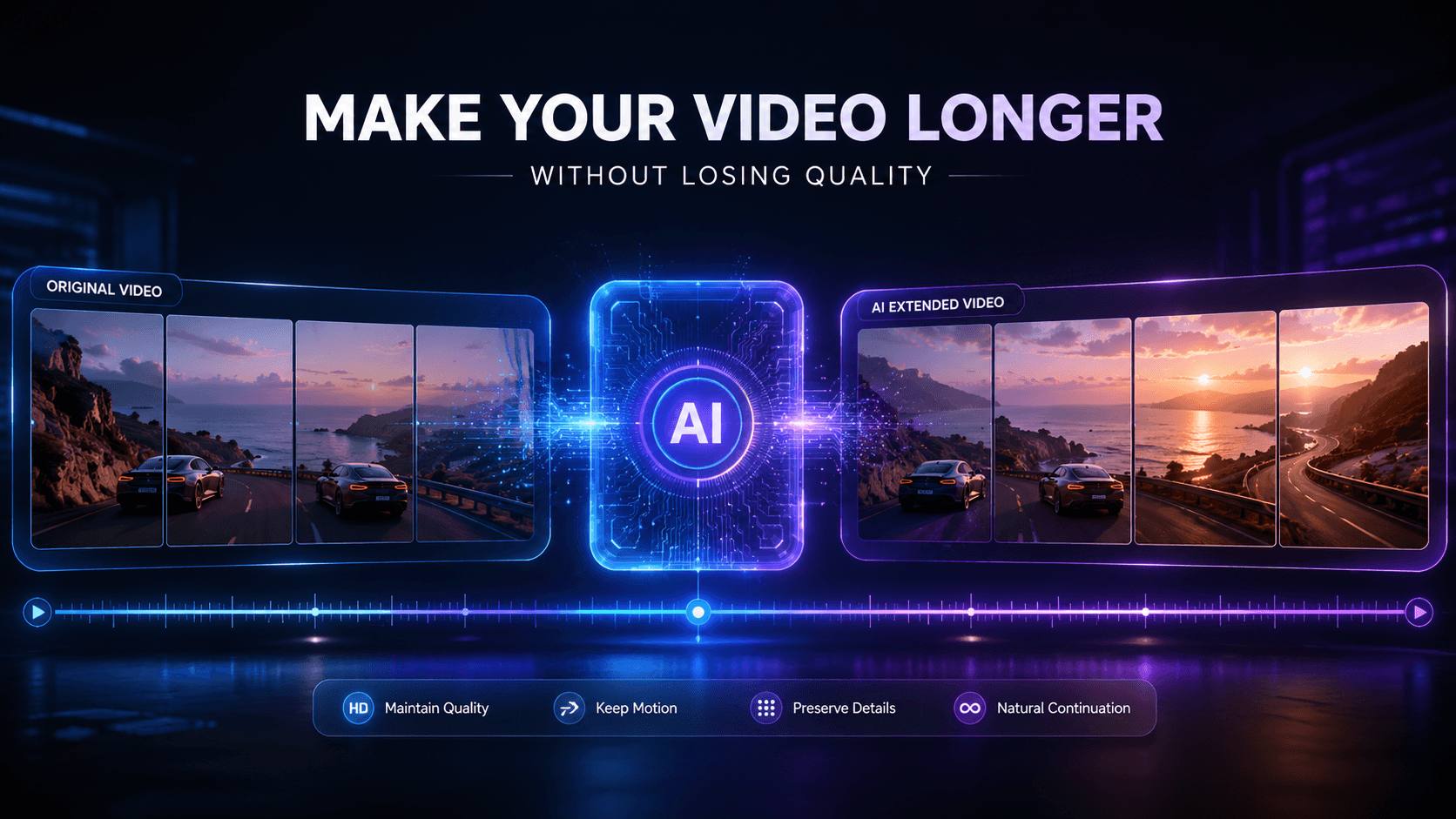
Have a great video that ends too soon? Maybe your AI-generated clip is only a few seconds long, your product shot cuts off before the final reveal, or your cinematic scene needs more time for editing.
The traditional solution is to slow down the footage, loop it, freeze the last frame, or add another clip. These methods can increase video duration, but they do not actually continue what is happening in the scene.
An AI video extender works differently. It analyzes your existing video and generates additional footage that attempts to continue the subject, motion, camera movement, lighting, and overall visual style.
In this guide, we explain how to make a video longer without losing quality, when AI video extension works best, and how to get more natural results.
Quick Answer: What's the Best Way to Make a Video Longer?
There are several ways to extend video duration without significantly reducing visual quality.
If your goal is simply to increase duration, slowing or looping may be enough.
But if you want the action or scene itself to continue, AI video extension is usually the more useful approach because it generates new footage instead of repeating existing frames.
How to Make a Video Longer With AI
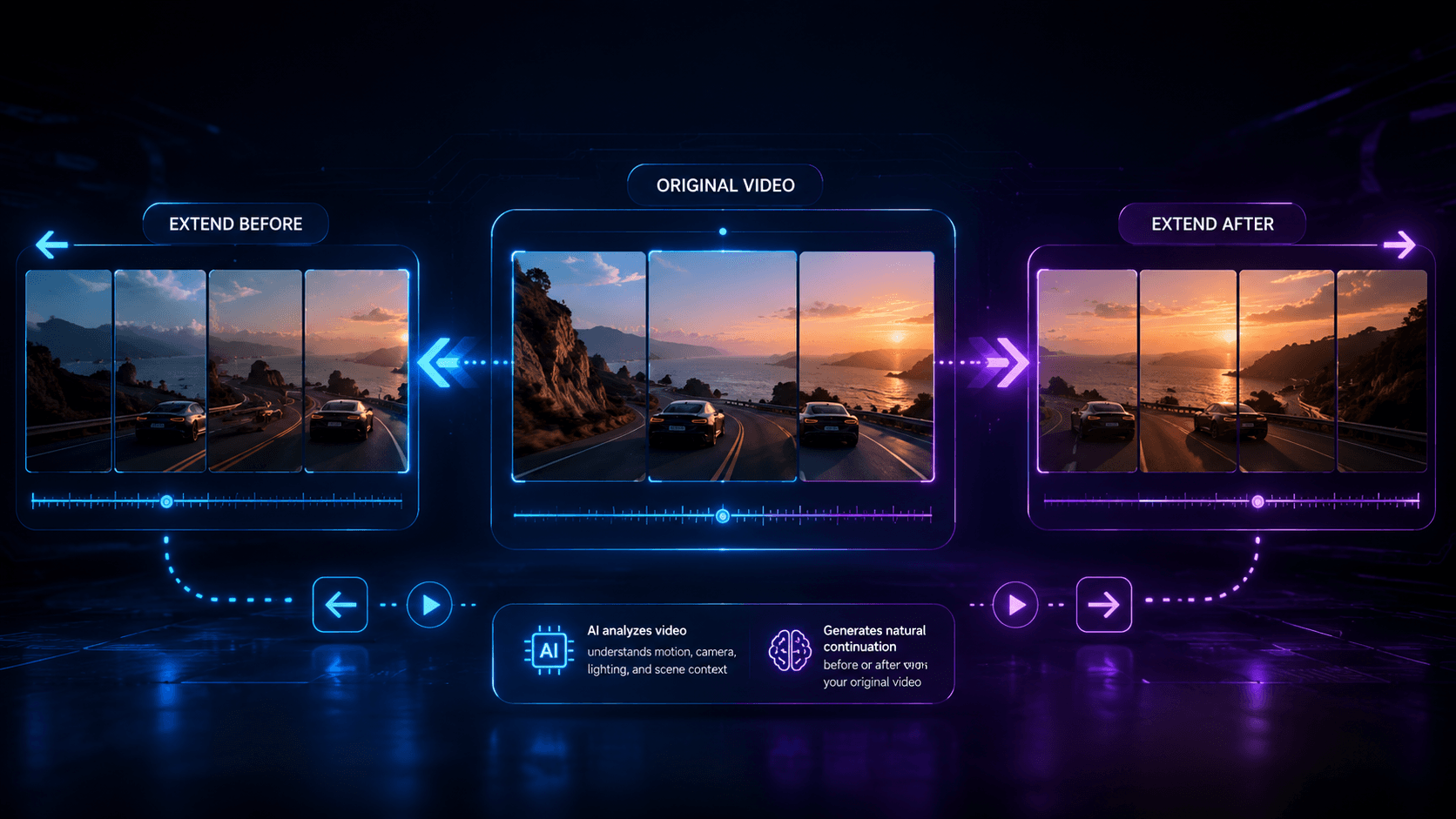
Using an AI video extender does not require a complicated editing timeline. The process usually comes down to uploading your clip, deciding how it should continue, and generating additional footage.
Here's how to do it.
Step 1: Upload Your Original Video

Start by uploading the highest-quality version of your source video to Video Extender AI.
Common formats such as MP4, MOV, and WebM can be used.
The quality of your source matters because the AI uses the existing footage as visual context. A clear video provides more information about:
- The main subject
- Background and environment
- Camera direction
- Object movement
- Lighting
- Colors
- Perspective
- Visual style
For example, if your clip shows a car driving along a mountain road, the final frames tell the AI where the car is moving, how the camera is positioned, and what the surrounding landscape looks like.
Step 2: Choose Where to Extend the Video

Next, decide whether you want to add footage before or after your existing video.
Extend After the Video
This is useful when you want an existing action to continue.
Original: A woman walks toward the ocean at sunset.
Extension: She continues walking as the camera slowly pulls back and reveals more of the beach.
Other good examples include continuing:
- A drone flight
- A camera pan
- A product rotation
- A walking character
- A moving vehicle
- An environmental shot
Extend Before the Video
You can also generate footage that leads into your existing scene.
For example, if your original clip begins with a drone already flying above a city, an AI-generated extension could start lower behind a building before gradually revealing the original view.
This can make an abrupt opening feel more complete.
Step 3: Describe What Should Happen Next
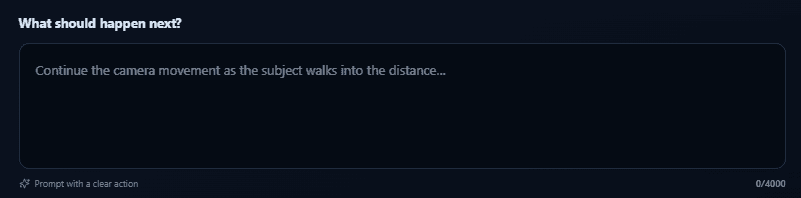
Your prompt is one of the most important parts of AI video extension.
Instead of describing the entire scene again, focus on what should happen next.
A simple formula is:
Subject + Continuing Action + Camera Movement + Environment + Continuity
For example:
The woman continues walking slowly along the beach while the camera pulls back, maintaining the same warm sunset lighting and cinematic atmosphere.
This is more useful than:
Beautiful woman walking on beach, sunset, cinematic, 4K.
The second prompt describes a scene. The first describes how an existing scene should continue.
Here are a few more examples.
Product Video
The camera continues orbiting slowly around the watch while reflections move naturally across the metal surface, maintaining the same studio lighting and dark background.
Travel Video
The drone continues moving forward above the coastline and gradually rises to reveal more of the cliffs and ocean.
Cinematic Video
The camera continues moving slowly through the fog while distant lights become more visible, maintaining the same dark cinematic atmosphere.
Character Video
The man continues walking toward the doorway while the camera follows smoothly from behind, maintaining the same clothing, lighting, and environment.
Step 4: Choose Duration and Output Settings
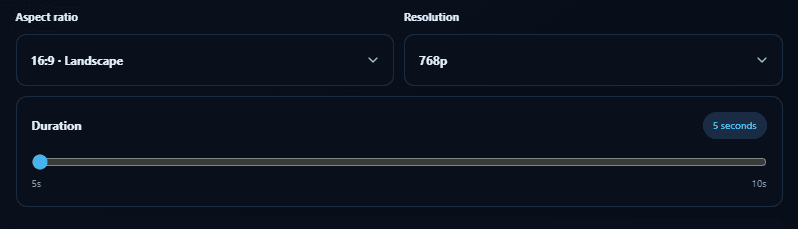
Select the extension duration and available output settings.
When your priority is visual continuity, try to keep the output configuration similar to the original footage.
For example, if your source video is landscape, keeping the same aspect ratio avoids introducing unnecessary composition changes during generation.
You should also consider how much footage you actually need.
Generating a few additional seconds is often easier to control than asking the AI to create a much longer and more complicated sequence at once.
If you need a longer video, you can use a progressive workflow:
Original Video → Extension 1 → Extension 2
After each extension, review the output before continuing. This gives you more control over how the scene develops.
Step 5: Generate the Extended Video

Once your video, prompt, extension direction, and settings are ready, start the generation.
The AI uses information from your source footage and prompt to generate new frames that attempt to follow the original visual direction.
Depending on the scene, the extension may continue:
- Character movement
- Camera motion
- Environmental movement
- Object movement
- Lighting behavior
- Scene atmosphere
Unlike slowing down or looping, these are newly generated frames rather than copies of your original footage. That is what makes AI video extension useful when you actually need more content.
Step 6: Check the Transition
Do not judge an extended video from a single frame.
Watch the entire sequence, especially the moment where the original footage transitions into the AI-generated section.
Look for five things:
Subject Consistency
Does the person, product, vehicle, or other main subject remain recognizable?
Motion Continuity
Does movement continue naturally, or does the subject suddenly change speed or direction?
Camera Movement
If the original camera was moving forward, does the extension continue that motion smoothly?
Lighting and Color
Look for sudden changes in brightness, shadows, color temperature, or atmosphere.
Background Details
Buildings, furniture, landscapes, and other important objects should remain reasonably consistent.
If something looks wrong, do not immediately rewrite the entire prompt. Change the problematic instruction and generate another version.
7 Tips to Extend a Video Without Losing Quality
AI-generated footage can vary, but several techniques can improve your chances of getting a cleaner continuation.
Use the Highest-Quality Source
Start with the original file whenever possible. Repeated compression can remove texture and detail that would otherwise help the model understand the scene.
Choose a Clean Extension Point
The final frames of your source clip are especially important when extending forward. A clear subject and stable scene usually provide a better starting point than a sudden cut, extreme motion blur, or chaotic camera movement.
Continue Existing Motion
One of the easiest ways to maintain continuity is to follow the visual direction already established in the source. If a car is moving forward, let it continue forward. If the camera is orbiting a product, continue the orbit. If a drone is rising, continue the upward movement. Major changes are possible, but they also increase complexity.
Keep Your Prompt Focused
Avoid prompts such as:
The woman walks forward, starts running, turns around, waves at the camera, it begins raining, and the camera flies into the sky.
Instead, try:
The woman continues walking forward as the camera slowly pulls back, maintaining the same lighting and environment.
Simple prompts give the generation a clearer visual objective.
Describe Camera Movement
Camera continuity can be just as important as subject consistency. Useful phrases include:
- Camera slowly pulls back
- Camera continues tracking forward
- Static camera
- Slow orbit around the subject
- Drone continues moving forward
- Camera gradually tilts upward
If you do not want the camera to move, specify that as well.
Preserve Lighting and Style
If the original scene takes place during sunset, suddenly switching to bright midday lighting can make the extension obvious. Try to maintain the same lighting, weather, color palette, environment, perspective, and visual style. The fewer unnecessary changes you introduce, the easier it is to maintain continuity.
Generate More Than One Version
AI video generation is not completely deterministic. The same source video can produce different continuations. If the first output is not ideal, generate another version or slightly adjust your prompt. Comparing several outputs can help you find the extension with the smoothest transition.
AI Video Extension vs Slow Motion vs Looping
AI is not always the only way to make a video longer. The right method depends on what you want to achieve.
AI Video Extension
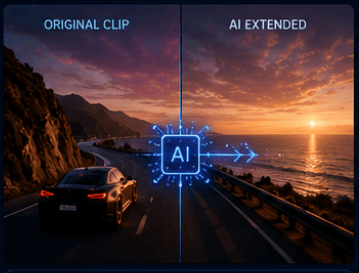
AI creates new footage based on your existing clip.
Best for: AI videos, cinematic scenes, product shots, travel footage, B-roll, and social media content.
Main advantage: The scene can actually progress.
Slow Motion
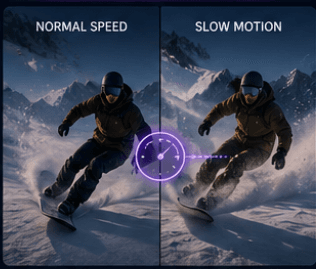
Slow motion increases duration by reducing playback speed. This works especially well when the source was recorded at a high frame rate. However, extreme slowing can create unnatural motion or require frame interpolation.
Best for: Sports, action, dramatic moments, and cinematic footage.
Looping
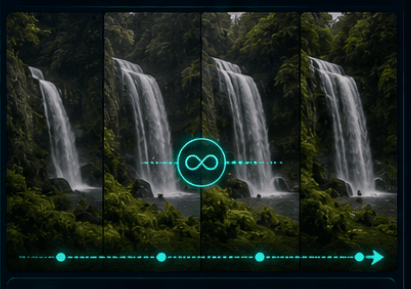
Looping repeats the original footage. It works particularly well with repetitive scenes such as fire, water, clouds, abstract animation, and rotating objects. The quality of the original frames remains unchanged, but viewers may notice the repetition.
Adding B-Roll
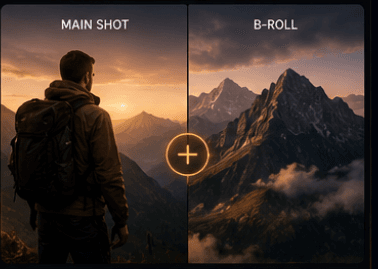
If you already have matching footage, adding B-roll remains one of the safest ways to increase video duration. But when you do not have additional footage and cannot reshoot, AI extension becomes much more useful.
When Should You Use an AI Video Extender?
AI video extension can be useful whenever a good clip simply ends too early.
AI-Generated Videos
Many AI video generators create short clips. Instead of generating an entirely new scene, you can use the successful clip as the visual foundation for a continuation.
Product Videos
Extend an orbit, reveal, close-up, or camera movement to create more editing flexibility for ads and product presentations.
Social Media
Short clips can be extended to create more room for transitions, captions, voiceovers, or music.
Cinematic B-Roll
Landscapes, drone shots, city scenes, and atmospheric footage can benefit from a few extra seconds of natural movement.
Marketing Content
AI extension can help create longer variations of existing creative assets without requiring a complete reshoot.
Common Mistakes to Avoid
The biggest mistake is treating video extension like text-to-video generation.
You already have a scene. Your prompt should explain how that scene develops rather than replacing it.
Also avoid:
- Changing too many elements at once
- Using low-quality source footage
- Ignoring existing camera direction
- Making major lighting changes
- Extending too much in one generation
- Assuming the first result will always be perfect
The goal is continuity, not maximum visual change.
FAQ
Can AI make a video longer?
Yes. An AI video extender can use an existing video as visual context and generate additional footage before or after the original sequence.
How can I make a video longer without losing quality?
Use a high-quality source, maintain the original motion and camera direction, keep your prompt focused, and preserve the lighting and environment. If you need new footage rather than repeated frames, AI video extension is one option.
Does extending a video reduce resolution?
Not necessarily. Resolution and visual consistency are different. Even when output resolution remains high, you should still check generated footage for motion, identity, lighting, and background changes.
Can I extend an AI-generated video?
Yes. Short AI-generated clips can be used as source footage for additional AI-generated continuation.
Is AI video extension better than looping?
It depends on your goal. Looping is useful when repetition looks natural. AI extension is better when you want the action or scene to continue rather than repeat.
How long should I extend a video?
Short, focused extensions are generally easier to control. If you need significantly more footage, consider generating several extensions and reviewing each one before continuing.
CREATE WITH AI VIDEO EXTENDER
Make Your Video Longer With AI
Making a video longer does not have to mean repeating frames or slowing everything down.
With Video Extender AI, you can upload an existing clip, describe what should happen next, and generate additional footage that follows the original video's visual direction.
For better results, remember this workflow:
Upload → Choose Extension Direction → Describe the Next Action → Generate → Check Continuity → Refine
The goal is not simply to create a longer timeline. It is to make the new footage feel like a natural continuation of the video you already have.
Try Video Extender AI and extend your video with AI →